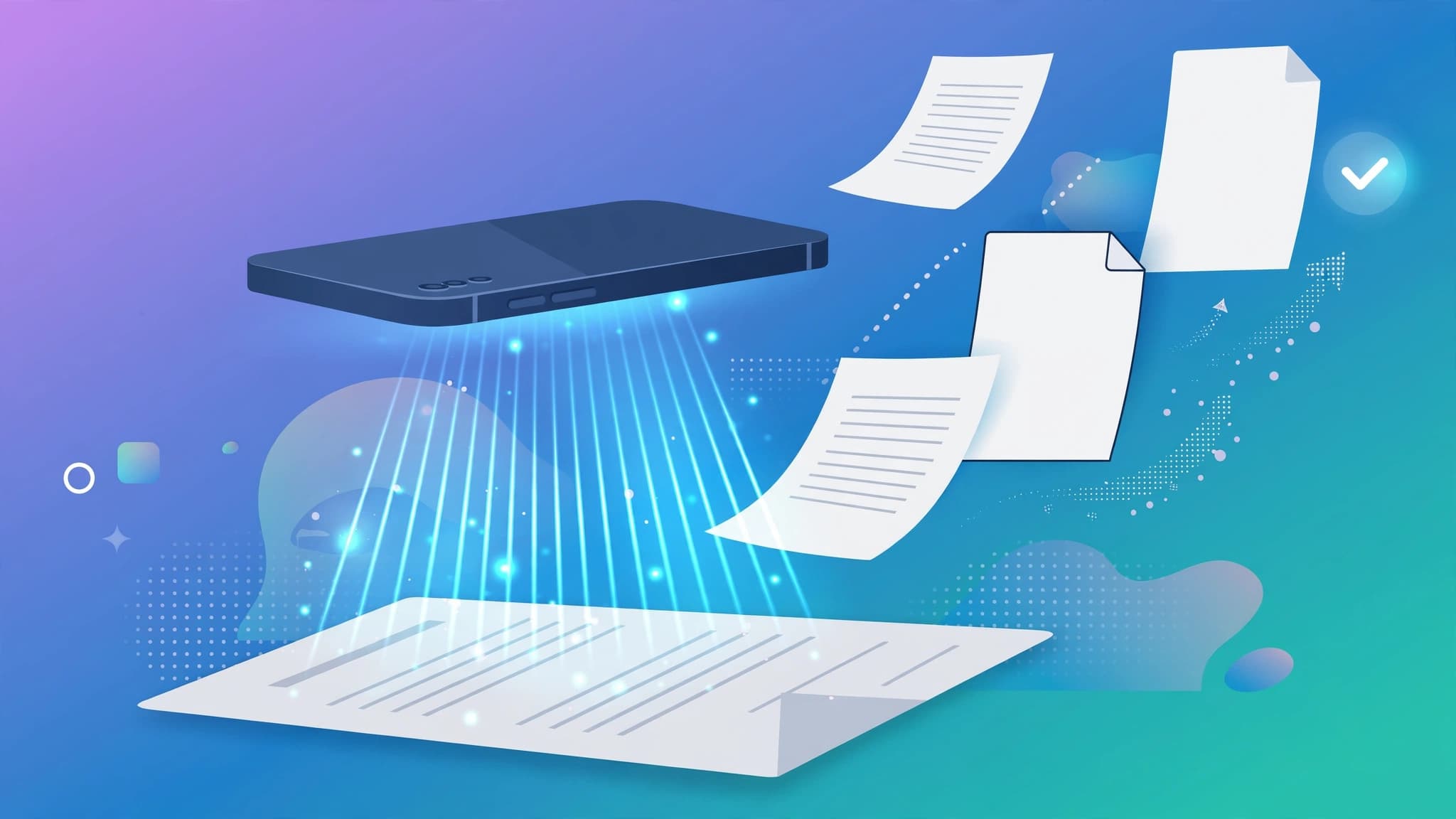
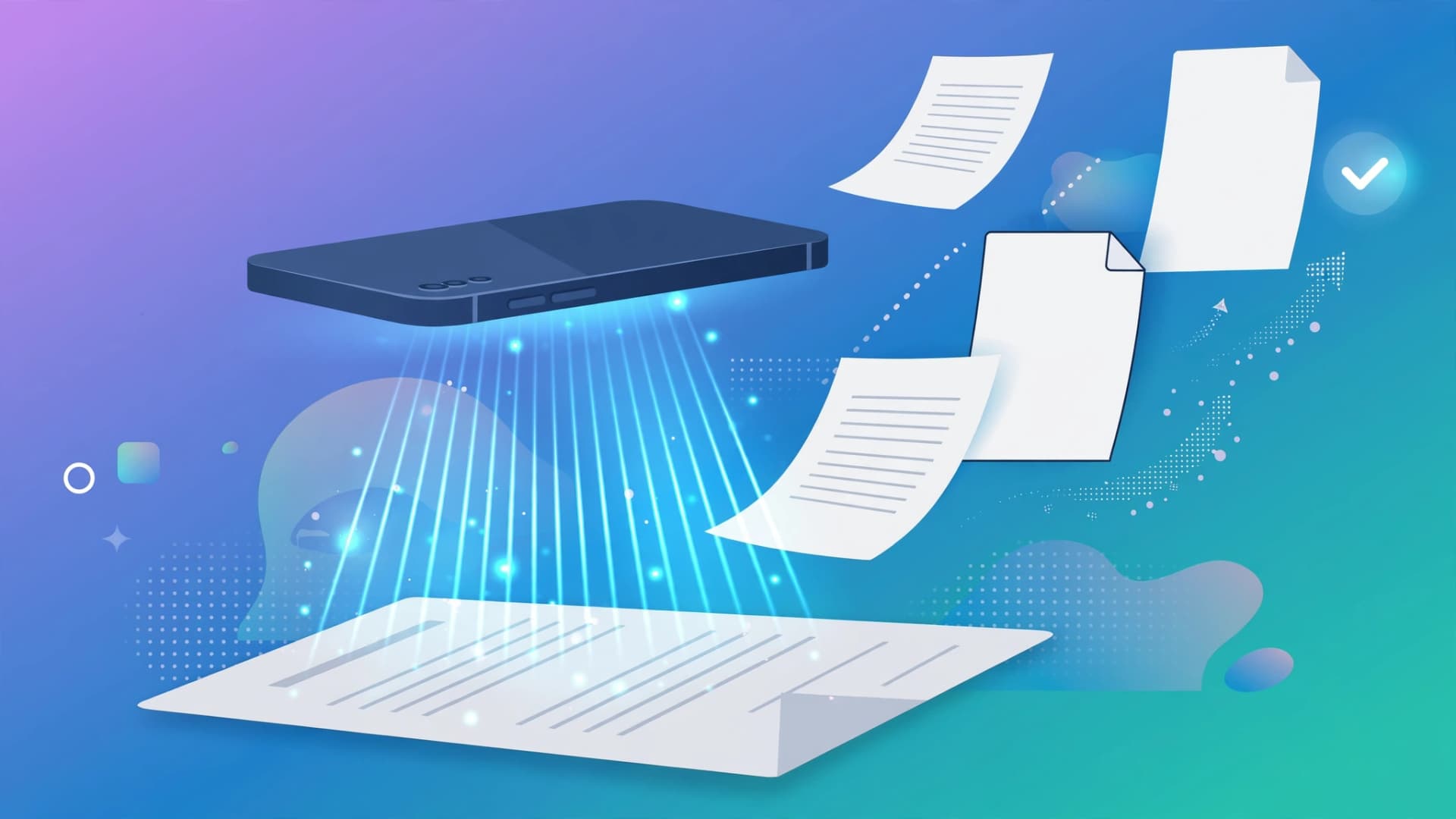
A decent phone camera plus the right app now beats a desk scanner for almost everything. Modern scanner apps use AI for edge detection, perspective correction, shadow removal, and OCR that turns paper into searchable PDFs. The catch: every "free" scanner app monetises differently, and a few put watermarks on your documents unless you pay. Here are eight real options compared honestly, including what the free tier actually gives you.
How we compare these apps
The things that actually matter when you scan documents with a phone:
- Scan quality — auto edge detection, perspective correction, and clean output on receipts, books, and crumpled forms
- OCR accuracy — how reliably printed text becomes searchable and copyable
- Watermarks — whether the free version brands your PDFs (a dealbreaker for work documents)
- Cloud integration — where your scans go and how they get there
- Privacy — whether documents stay on your device or upload to a server
1. Adobe Scan — best overall free scanner
Adobe Scan remains the safest default pick. It is free on iOS and Android, captures documents with excellent clarity, automatically crops and straightens pages, and converts scanned text into searchable PDFs with solid OCR. It recognises forms and tables well, offers document, book, whiteboard, and ID scan modes, and syncs to Adobe Document Cloud with unlimited free scans and no watermarks on the scans themselves.
The tradeoffs: you must create an Adobe account before scanning anything, the free tier caps cloud storage at 2 GB, and genuinely advanced features (more storage, fill-and-sign extras) sit behind the Premium subscription at around $9.99/month. Processing also feels slightly slower than lighter rivals. If you already live in the Adobe ecosystem, this is the obvious choice.
2. Microsoft Lens — best free Office integration (but changing)
Microsoft Lens was long the best truly-free option: no paid tier at all, good scanning quality, document/book/whiteboard/ID modes, and one-tap export of scans into Word, PowerPoint, Excel, or OneNote — genuinely unique for office workers who need editable text from a scanned page. It also added annotations and signature support.
One important caveat for 2026: Microsoft is retiring the standalone Lens app and folding its functionality into the broader Microsoft 365 mobile experience. It could only be downloaded from the App Store and Play Store until February 9, 2026. If you rely on Lens, migrate to the Microsoft 365 app or pick another scanner on this list soon.
3. CamScanner — most features, ad-heavy free tier
CamScanner is the power-user option: batch scanning, text extraction, editing tools, document management, and conversions across a huge range of formats. It supports document, book, whiteboard, and ID modes with good scan quality and OCR in 40+ languages.
The free version is the price: frequent ads, and free scans carry a watermark unless you upgrade to Premium at $4.99/month. The app also has a troubled history — a malware incident in 2019 means privacy-conscious users should read current permissions carefully. Great if you want every feature in one app and can live with ads or pay.
4. Genius Scan — best for privacy
Genius Scan is the pick for legal, healthcare, or finance documents: processing happens on-device by default, with cloud sync strictly optional. The free tier covers the core scanning experience — batch scanning, edge detection, clean PDF output — with no watermarks. OCR is reserved for the premium option (a one-time purchase rather than a subscription).
It is not the flashiest app, but that is the point: no account required, no ads screaming at you, and your documents never leave the phone unless you ask them to. Smart document organisation and expense-tagging extras make it popular for receipt management too.
5. SwiftScan — fastest scans with real AI extras
SwiftScan (formerly Scanbot) is built for speed: automatic edge detection, one-tap multi-page scanning, and premium-quality PDF or JPG output at 200 dpi and above. Its AI Tools can summarise scanned documents into brief overviews or longer reports, translate scans between languages, and perform AI-powered OCR for search and copy. It also handles QR codes, fax sending, password-protected PDFs, Face/Touch ID locks, and deep cloud integrations (iCloud, Dropbox, Google Drive, Box, Evernote, WebDAV).
The free version scans fine, but advanced AI features including OCR sit behind a subscription at around $2.99/month, and free exports carry a watermark. Best for people who scan daily and want automation like smart file naming and one-tap email workflows.
6. Google Drive scanner — the one already on your phone
Android users often skip this: open the Google Drive app, tap the scan button, and you get automatic cropping, PDF export, and instant cloud backup — no extra install, no account to create, no watermark. OCR is basic but functional for searchable PDFs. It will not beat Adobe Scan on accuracy or offer fancy organisation, but for quick everyday scans it is the fastest path from paper to PDF on most Android phones.
7. Apple Notes scanner — best for iPhone minimalists
Similarly, iPhone and iPad owners already have a scanner in the Apple Notes app: open a note, tap the attachment icon, and choose Scan Documents. It captures pages with auto edge detection, saves to Notes or Files with iCloud sync, and supports text search inside scans. OCR is limited compared to dedicated apps, and there is no batch-management or cloud choice beyond Apple's ecosystem. For the occasional receipt or form, though, it is free, fast, and already installed.
8. Tiny Scanner — lightweight and fast
Tiny Scanner does one thing well: it is a fast, lightweight scanning app with minimal fuss — point, capture, save. The free tier handles everyday scanning; OCR requires the premium upgrade, and feature depth lags behind CamScanner or SwiftScan. It is the pick for older phones or users who find the big apps over-engineered and just want clean PDFs quickly.
Quick comparison
| App | Truly free tier | OCR in free tier | Watermark (free) | Standout trait |
|---|---|---|---|---|
| Adobe Scan | Yes, unlimited scans | Yes | No | Best overall quality |
| Microsoft Lens | Fully free | Yes | No | Word/Excel export — but being retired |
| CamScanner | Yes | Premium only | Yes | Most features |
| Genius Scan | Yes | Premium only | No | On-device privacy |
| SwiftScan | Yes | Premium only | Yes | Speed + AI summaries |
| Google Drive scanner | Fully free | Basic | No | Already on Android |
| Apple Notes scanner | Fully free | Limited | No | Already on iPhone |
| Tiny Scanner | Yes | Premium only | No | Lightweight |
Which one should you pick?
- Most people: Adobe Scan — best quality, no watermarks, free.
- Office workers: Microsoft 365's folded-in Lens features, for editable Word/Excel exports.
- Privacy-sensitive documents: Genius Scan, since scans stay on-device.
- Heavy batch scanning with automation: SwiftScan, if you accept the subscription.
- One-off scans: Google Drive scanner on Android, Apple Notes on iPhone — both free and already installed.
- Feature maximalists: CamScanner, if the ads and watermark do not bother you.
Two rules of thumb: check for watermarks before scanning anything for work (CamScanner and SwiftScan watermark free exports), and if you handle contracts or medical records, prefer the apps with on-device processing and optional cloud sync. A scanner app you open twice a week is a tool; one that uploads everything to a server is a liability.
Key takeaways
- Adobe Scan is the best all-round free document scanner: excellent OCR, no watermarks, unlimited scans, 2 GB free cloud storage.
- Microsoft Lens is being folded into the Microsoft 365 app after its February 2026 retirement — migrate your workflow now.
- CamScanner and SwiftScan watermark free scans and reserve OCR for paid tiers; check before scanning work documents.
- Genius Scan keeps documents on-device by default, making it the privacy-first choice for sensitive paperwork.
- Google Drive's scanner (Android) and Apple Notes' scanner (iPhone) are fully free, watermark-free, and already installed.