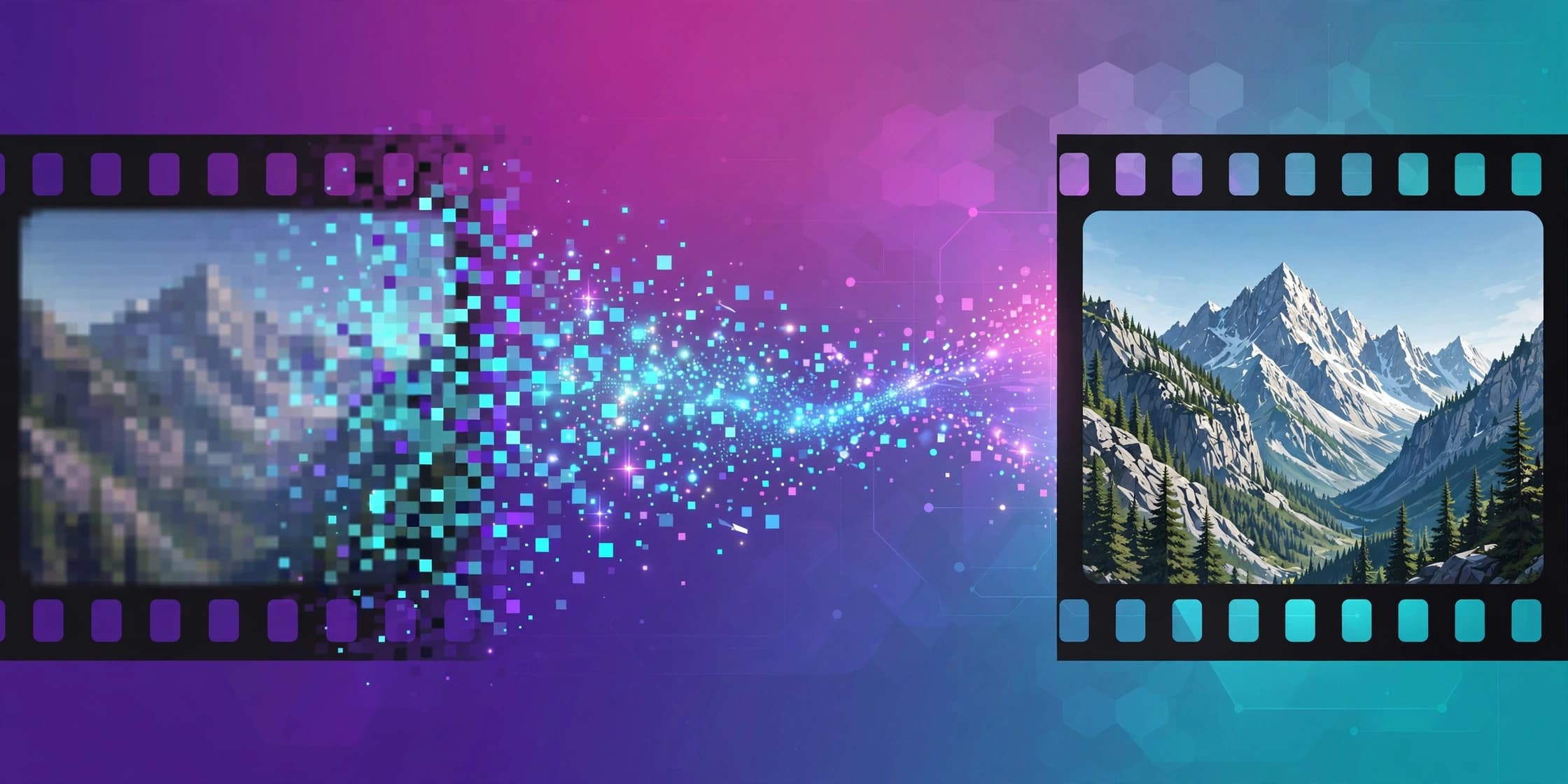
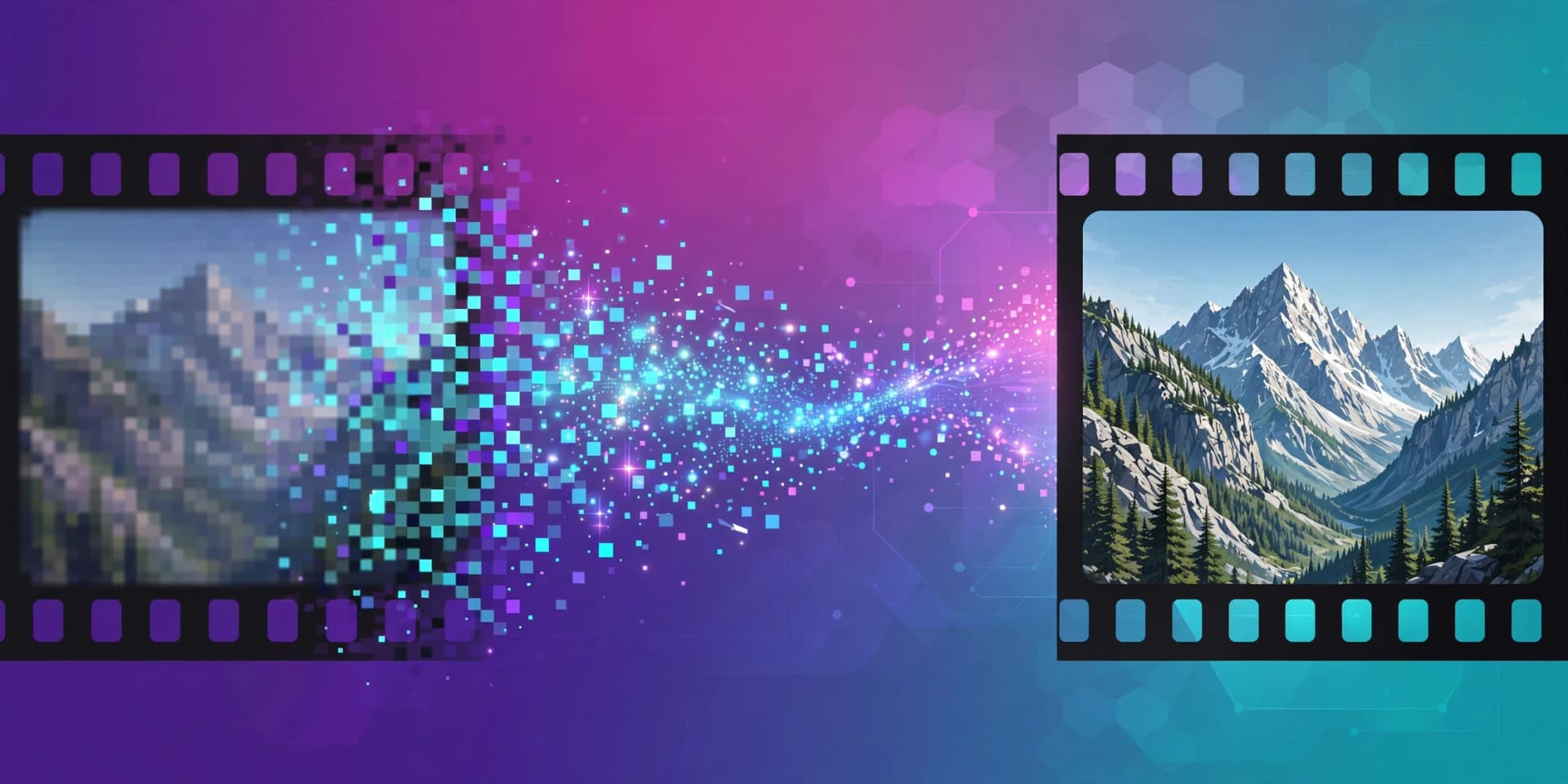
AI video upscaling turns soft 720p or 1080p footage into crisp 4K by reconstructing detail frame by frame, not just stretching pixels. In 2026 there are genuinely free tools that rival paid software like Topaz Video AI — this guide compares the best of them and walks you through a complete 1080p-to-4K workflow.
What AI video upscaling actually does
A basic upscaler stretches existing pixels, which is why old DVDs looked soft on HDTVs. AI upscalers instead analyse each frame and generate new pixel detail based on what the scene should look like at higher resolution: edges get reconstructed, textures sharpen, and compression noise is reduced. Most free tools do this frame by frame, then reassemble the video with the original audio.
Set your expectations honestly. Upscaling improves perceived sharpness, but it cannot fix footage that was never sharp: out-of-focus shots, heavy compression baked into the source, or shaky handheld clips. Garbage in, slightly-less-garbage out. The best results come from decent-quality 720p/1080p sources — AI-generated video, screen recordings, and old-but-clean camera footage.
The best free AI video upscalers in 2026
Video2X — best all-round free local pipeline
Video2X is consistently the top pick in 2026 open-source comparisons. It wraps multiple upscaling engines — Real-ESRGAN, Waifu2X, Anime4K — into one pipeline that extracts frames, upscales them with AI, and rebuilds the video. It runs offline on Windows, macOS and Linux, costs nothing, adds no watermark, and handles batch jobs. The tradeoff: the interface is not beginner-friendly and free local processing is slow (expect roughly 5–10x slower rendering than paid tools like Topaz or UniFab).
NextGenUp — the new one-click free alternative
NextGenUp is a 2026 open-source project (MIT licensed) that packages Real-ESRGAN super-resolution with GFPGAN face restoration into a simple desktop app. Drop in a video, choose Basic (fast) or Pro (AI), select 4x, and a 720p clip becomes 4K with audio preserved. Everything runs locally on your machine — no cloud, no subscription, no watermark, no account. Its niche is simplicity: it is aimed squarely at people who want one free app for images, video and faces instead of wrestling with command-line tools.
Real-ESRGAN — strongest standalone model
Real-ESRGAN is the model underneath most of these tools, and many commercial products use the same family of super-resolution models. Run directly (typically via Python or an ffmpeg-based pipeline), it is the strongest option for low-resolution or compressed footage. The catch is setup: you need Python comfort and manual model downloads. One benchmark on 1080p-to-4K clips measured it at quality close to Topaz but around 22 minutes per 3-minute clip on an RTX 4090 — fine for one-off clips, painful for batch work.
Waifu2x Extension GUI — easiest Windows option
If you want a GUI without a command line, Waifu2x Extension GUI is the most beginner-friendly local wrapper on Windows. It bundles several models behind a point-and-click interface and is a good stepping stone before trying Video2X or Real-ESRGAN directly.
CapCut — fastest free option, browser-based
For a one-click online route, CapCut's free tier offers AI upscaling to 4K with no watermark on standard exports. In independent 2026 tests it performed surprisingly well on talking-head footage, though weaker on fast motion. No install, no signup friction — best when you want a quick enhancement rather than a serious archival workflow.
Online no-install options
Vmake Labs upscales to 1080p, 2K or 4K with no signup and no watermarks. UnblurImage.AI handles short videos without signup (capped around 2K output). IMGUpscaler offers up to 4x AI sharpening for low-res footage with no signup, though free usage is limited. Online tools trade convenience for quotas, file-size caps and upload privacy — for personal or client footage, local tools keep everything on your machine.
Step-by-step: upscale a video to 4K with Video2X
1. Download Video2X from its GitHub releases page for your OS (Windows, macOS or Linux) and install it.
2. Open the app and add your source video. 720p or 1080p sources give the best results; going from 1080p to 4K means a 4x upscale (1920x1080 to 3840x2160).
3. Choose your driver: Real-ESRGAN for live-action footage, Anime4K for animation. Select 4x scale.
4. Enable batch mode if you have several clips — the queue will process them one after another.
5. Start processing. A 60-second clip can take many minutes to hours depending on your GPU; an 8GB VRAM GPU is a practical minimum for 4K output.
6. Check the output for flicker or ghosting on fast-moving scenes, then keep the original audio track — most wrappers preserve it automatically.
Prefer the command line? A minimal Real-ESRGAN workflow is: extract frames with ffmpeg, run Real-ESRGAN inference on the frames folder, then rebuild the video:
ffmpeg -i input.mp4 -qscale:v 1 frames/frame_%05d.png
# run Real-ESRGAN on the frames/ folder at 4x scale
ffmpeg -framerate 30 -i frames_upscaled/out_%05d.png -i input.mp4 -c:a copy -c:v libx264 -crf 18 output_4k.mp4
Settings that actually matter
Model choice. Real-ESRGAN variants (like realesr-general-x4v3) handle real-world degraded footage best; Anime4K's shaders are fastest for cartoons. Match the model to your content type.
Output scale. Going 1080p to 4K is exactly 4x. Going beyond your target (upscaling 720p at 4x gives 4K automatically) is fine; forcing 8x output then downscaling rarely helps and quadruples processing time.
Face restoration. NextGenUp and similar tools can run GFPGAN face restoration, which reconstructs blurry faces frame by frame. Great for old footage and vlogs, but it changes faces — never use it on evidence, news, or documentary material without disclosure.
GPU memory. 4K AI upscaling is VRAM-hungry. 8GB is the practical floor; below that, tools will fall back to CPU and become extremely slow. Upscale to 2x or split long clips if you hit memory errors.
What upscaling cannot fix
No upscaler — free or paid — can recover detail that was never recorded. Out-of-focus shots stay soft. Heavy compression artifacts can get amplified into weird textures if you push too far. Camera shake and motion blur do not become sharp motion. And fast-moving scenes can flicker or ghost when frames are enhanced independently. If your source is 480p webcam footage with bad lighting, upscaling will make it look marginally better, not cinematic.
When to pay instead
Free tools cover most personal, social-media and YouTube workflows. Consider a paid option like Topaz Video AI (around $199–299) only when you need the absolute best reconstruction quality on premium clips, faster batch throughput, or dedicated models for specific content (film grain, interlaced footage). For everything else, the 2026 free stack is genuinely competitive.
Key takeaways
- Video2X is the best free all-round local video upscaler in 2026: offline, watermark-free, batch-capable, but slow and not beginner-friendly.
- NextGenUp is the simplest one-click free option — Real-ESRGAN plus face restoration, no cloud, no account, 720p to 4K.
- CapCut, Vmake Labs and IMGUpscaler are solid no-install browser options for quick enhancements.
- Start from decent 1080p sources, use 4x scale for 4K, and keep the original audio track.
- Upscaling improves perceived sharpness but cannot fix out-of-focus, badly compressed or shaky footage — and face restoration changes faces, so use it transparently.