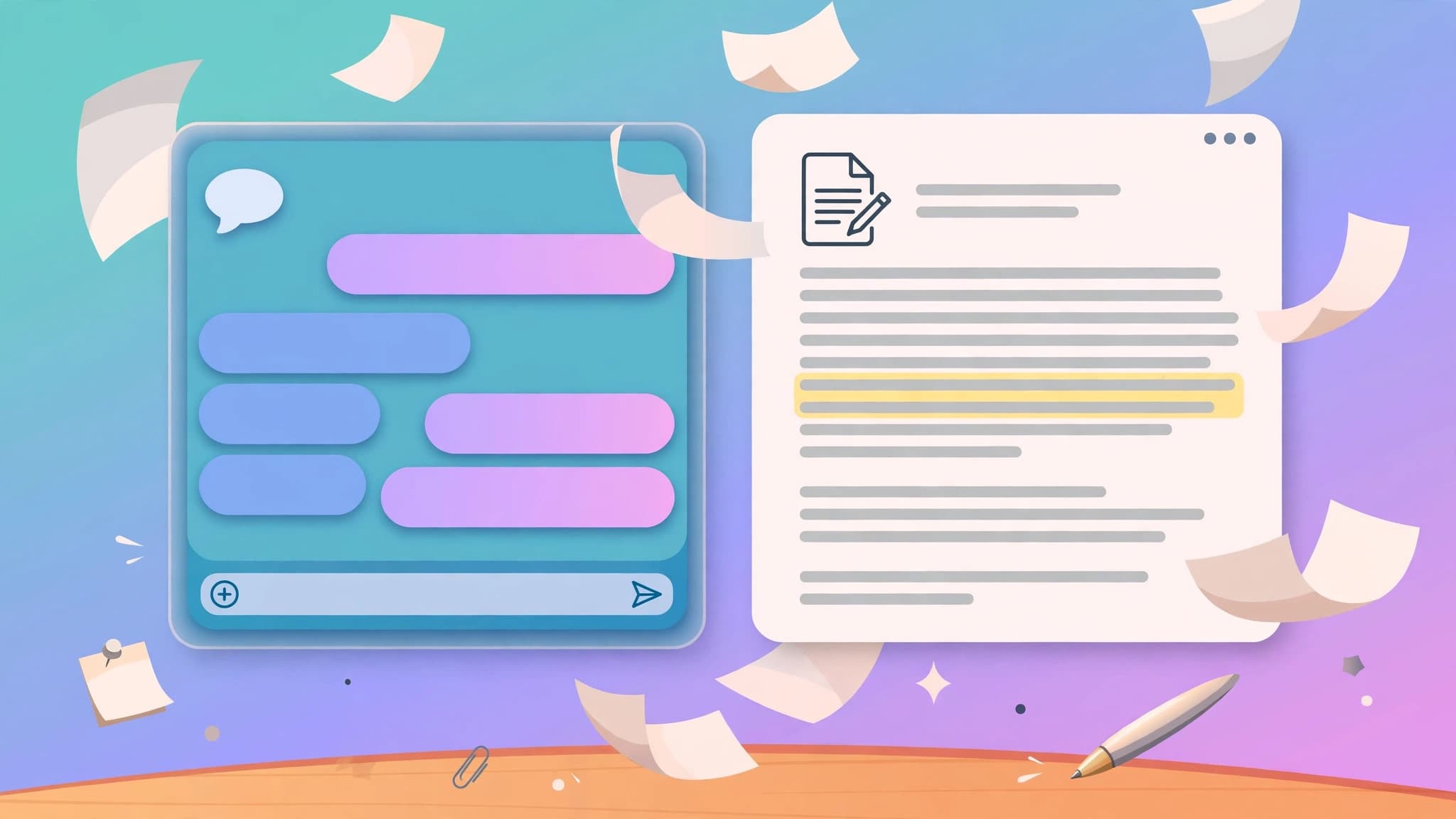
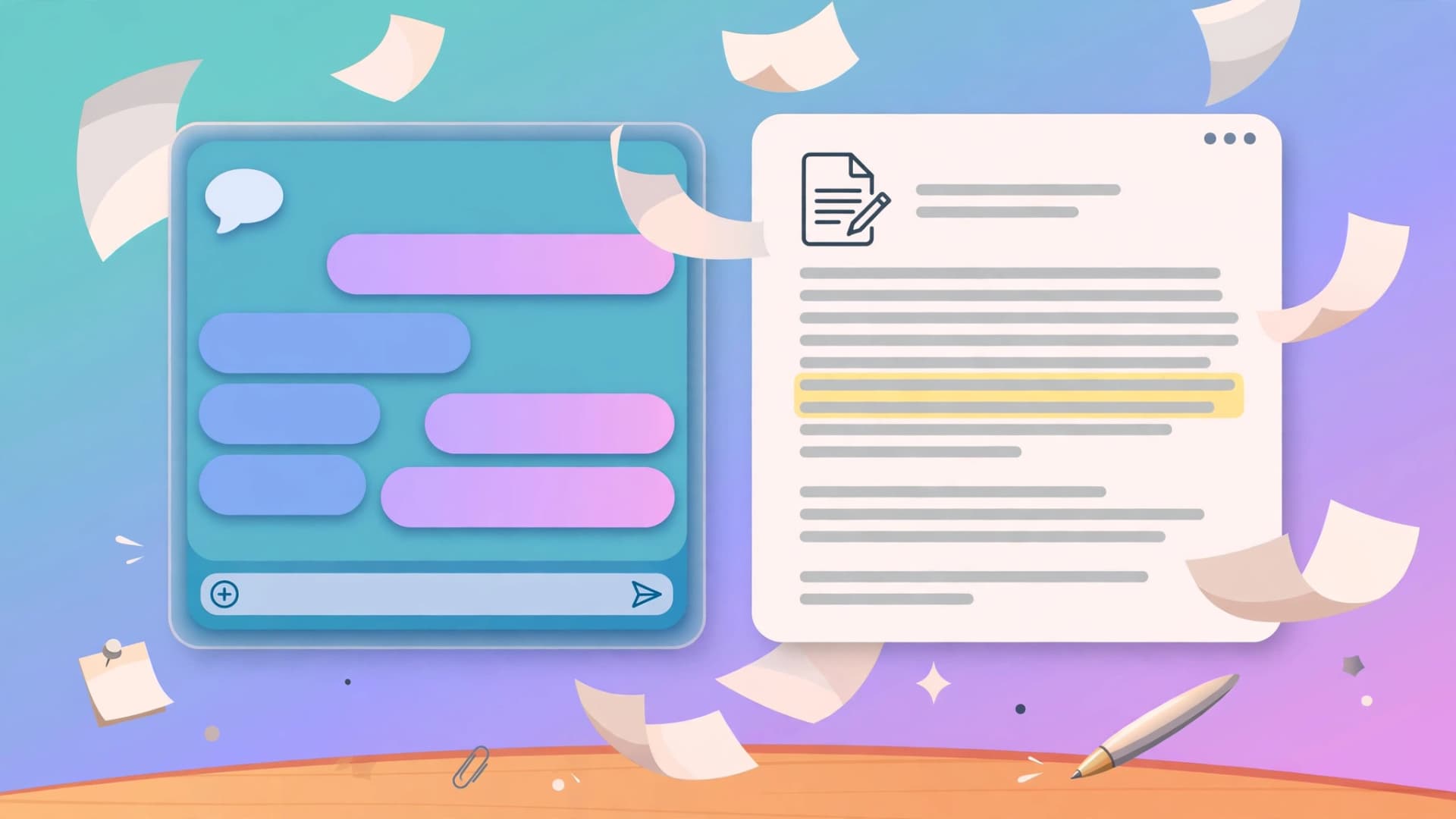
A normal ChatGPT conversation is a poor place to finish a long document. Every revision means re-reading a growing thread, copying text into another editor, and hoping the next reply does not quietly rewrite the parts you already liked. Canvas fixes that friction with a side-by-side editor: the chat stays on one side for instructions, while your document lives in its own panel where you can edit it directly. This guide shows how to use ChatGPT Canvas for a real writing workflow in 2026, from first draft to polished export.
What Canvas is, and when to use it
Canvas is a collaborative editing space inside ChatGPT. Instead of answers that scroll away in chat, a canvas opens as a persistent document you and ChatGPT refine together in real time. You can click into the text and type your own edits, highlight a passage and ask for a targeted rewrite, or use built-in shortcuts to change length, reading level, and polish.
Reach for Canvas whenever a piece of writing needs more than one pass. Blog posts, newsletters, reports, proposals, cover letters, and scripts all fit. For a one-off answer or a short email, ordinary chat is faster. The moment you catch yourself thinking "keep everything except paragraph three," Canvas is the right tool, because it lets you protect the parts that already work. Canvas also handles code, with shortcuts for reviewing code and fixing bugs, but this guide stays focused on writing.
Step 1: Open a canvas
Start a new chat in ChatGPT, then open Canvas from the tools next to the message box. In the current interface you can type /canvas in the chat box or choose Canvas from the tools menu; the exact label can vary as the interface changes, so check the tools menu if you do not see it immediately. Then describe the document you want, for example: "Open a canvas and draft a 900-word blog post about morning routines for remote workers, aimed at beginners, in a friendly tone."
Canvas opens beside the chat, with your draft in the editor panel and the conversation still available for instructions. If you already have a draft, paste it in and ask ChatGPT to open it in a canvas instead of starting from scratch. Notes, transcripts, outlines, and rough drafts all make good starting material, and starting from your own words usually produces a draft that sounds more like you.
Step 2: Draft in sections, not in one shot
Long documents come out better when you build them section by section. Ask for an outline first, approve or rearrange it in the editor, then expand one section at a time. This keeps the structure under your control and stops the draft from drifting off topic halfway through.
A practical sequence for a blog post looks like this. First, request a headline and a five-point outline. Next, expand the introduction and the first two sections, and read them before continuing. Then expand the rest, and only then ask for a conclusion. If a section feels wrong, fix it before moving on; a weak middle section rarely improves just because more words are added after it.
Step 3: Edit inline by highlighting text
Inline editing is the feature that makes Canvas different from chat. Highlight any sentence, paragraph, or section, then tell ChatGPT exactly what to change about that selection only. Try instructions such as "make this more direct," "replace the jargon with plain language," "add one concrete example," or "shorten this to two sentences."
Because the instruction applies to the highlighted text, the rest of the document stays untouched. That precision solves the classic chat problem where fixing one paragraph accidentally rewrites three others. Use it for the edits that matter most: the opening hook, the argument in a key paragraph, a call to action, or any sentence that sounds vague.
You can also type a fresh instruction in the chat, such as "shorten the introduction to three sentences." Chat instructions suit document-wide changes, while highlighting suits surgical ones. Learning to switch between the two is the core Canvas skill.
Step 4: Use the built-in writing shortcuts
Canvas includes one-click shortcuts in the editor that handle the most common revisions, saving you from writing the same prompt twenty times.
Suggest edits highlights passages ChatGPT thinks could improve and offers concrete replacements you can accept or ignore. Use it on a finished draft as a second pair of eyes, not on a first draft that still needs structural work.
Adjust length expands or condenses the document. It is ideal for turning a detailed draft into a short summary, or stretching a tight outline into a fuller article. Check the result carefully, because shortening can drop a nuance you wanted to keep, and expanding can add filler.
Adjust reading level retunes the vocabulary and sentence complexity for a different audience, from simpler language for general readers to more formal language for professional ones. This is genuinely useful when one piece must serve two audiences, such as a technical explanation rewritten for clients.
Add final polish tidies grammar, consistency, and flow across the whole document. Run it near the end, after the structure is settled, not at the start when whole sections may still move.
Step 5: Use version history before risky rewrites
Every edit in Canvas creates a version you can return to, and version history is what makes experimentation safe. Before a big rewrite, such as changing the tone of the whole piece or cutting a third of it, remember you can restore an earlier version if the new direction fails.
Step 6: A repeatable Canvas writing workflow
Here is a workflow you can reuse for almost any article. It takes a blog post from blank page to publishable draft in about five passes.
First, brief and outline. Open a canvas, state the audience, length, and goal, and approve the outline by editing it directly. Second, draft section by section, reading each section as it lands. Third, do a structural pass: highlight weak sections and ask for tighter arguments or better examples, and cut anything that repeats the introduction. Fourth, run the shortcuts: adjust the length to your target, set the reading level for your audience, then add a final polish. Fifth, fact-check and export. Read the whole piece once for facts, names, and numbers, correct anything ChatGPT got wrong, and copy the text into your publishing tool.
Two rules keep this workflow honest. Never publish a Canvas draft without reading it end to end, because fluent text can hide wrong facts. And keep your own voice in the piece: if every sentence sounds like a chatbot, highlight the worst offenders and rewrite them in your own words before publishing.
Common mistakes to avoid
The most common mistake is treating Canvas like chat and re-prompting the whole document for every fix. That throws away the precision that makes Canvas valuable. Highlight the exact text instead.
The second mistake is accepting every suggested edit. Suggestions are starting points, and accepting them all can flatten your style into generic prose. Accept the ones that genuinely improve clarity, and reject the ones that change your meaning.
The third mistake is skipping the export step. Canvas is a drafting space, not your archive. Once a piece is final, copy it into your document system or blog editor, so you still have it if the chat is deleted. Finally, be careful with sensitive material: do not paste passwords, private client data, or unpublished confidential information into any AI chat, Canvas included. Use placeholders, and fill in the real details after export.