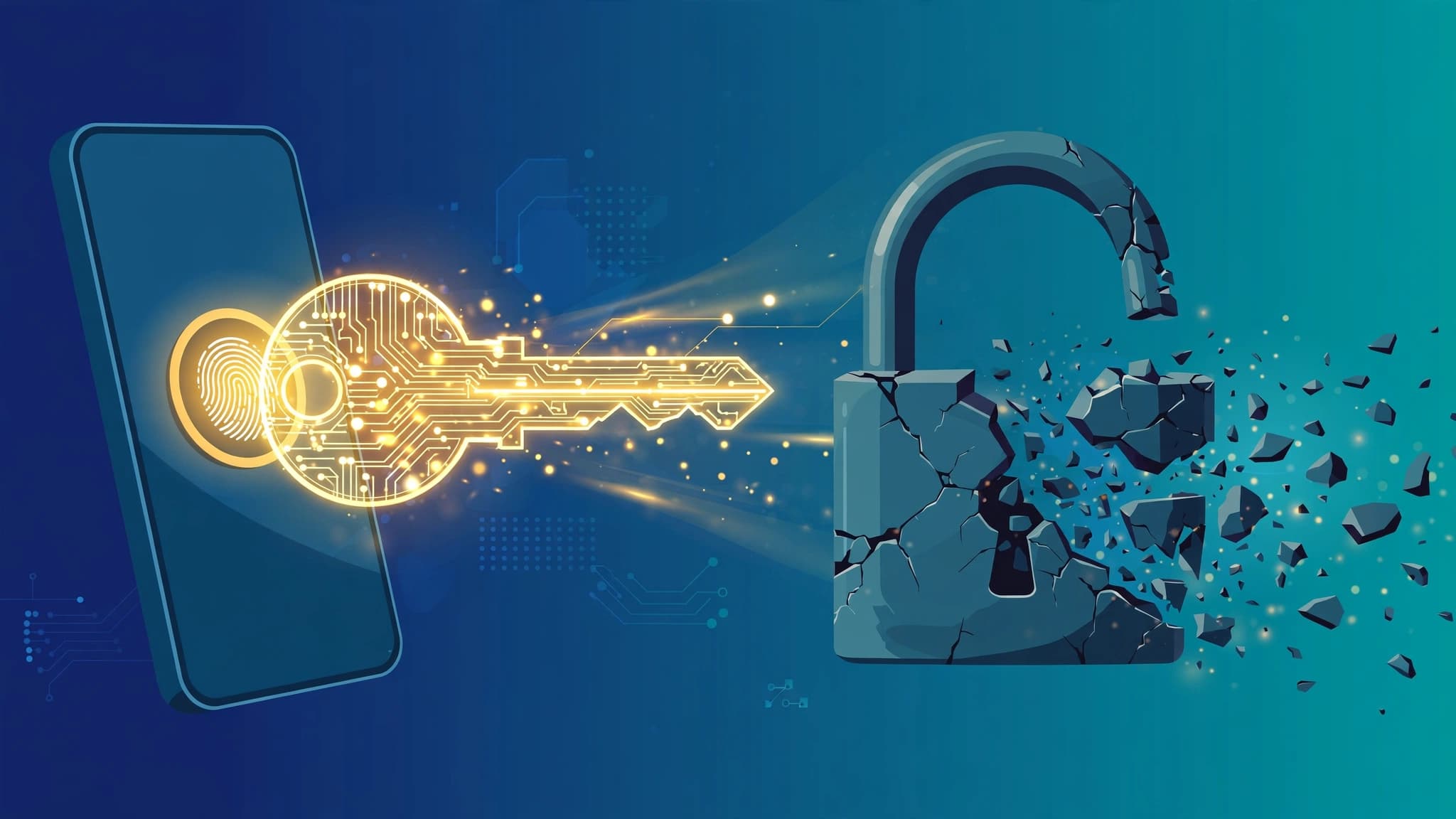
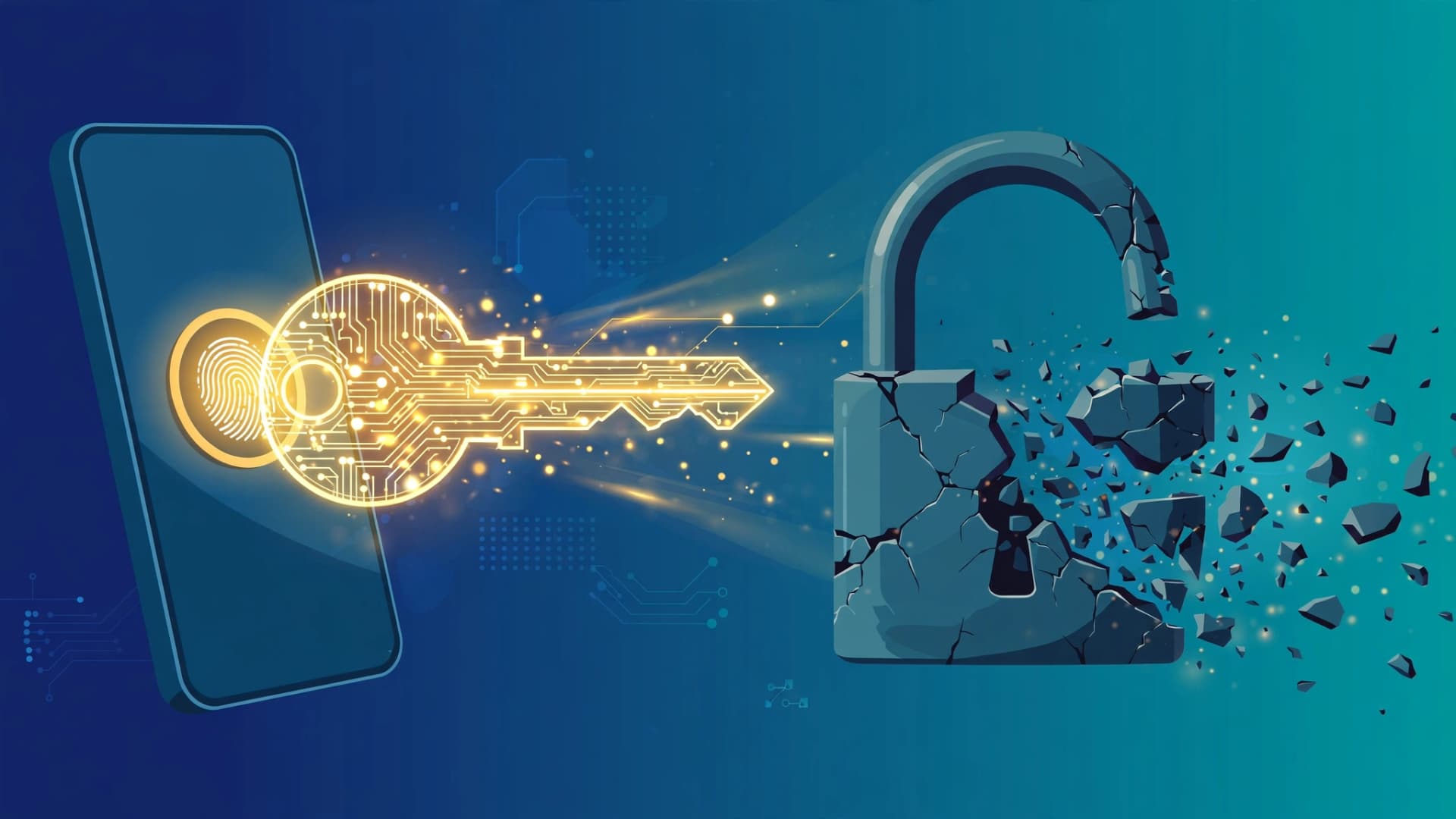
Passwords have failed in the same predictable ways for decades: people reuse them, phishing sites harvest them, and server breaches leak millions of them at once. Passkeys replace the whole model with public-key cryptography — a key pair your device generates, where the private half never leaves your hands and the website only stores a public key. The comparison is no longer theoretical: in 2026 every major platform supports passkeys natively, more than 15 billion accounts can use them, and the FIDO Alliance reports around 5 billion passkeys in active use.
How passkeys actually work
A passkey is a cryptographic key pair created under the FIDO2/WebAuthn standard, generated for one specific account on one specific website. The public key goes to the service; the private key stays locked on your device, guarded by your fingerprint, face scan, or device PIN. At login, the service sends a cryptographic challenge, your device signs it with the private key, and the server verifies the signature against the public key.
Two details make this design powerful. First, nothing secret crosses the network — there is no password for a phishing site to steal or a database breach to leak. The credentials are cryptographically bound to the legitimate domain, so a lookalike login page gets nothing useful. Second, your biometric data never leaves the device. Only the signature travels, not your fingerprint or face scan.
Passkeys come in two flavours: device-bound keys stored in hardware like a YubiKey or your laptop's TPM chip (never exportable, most portable across operating systems) and synced passkeys in platform credential managers — iCloud Keychain, Google Password Manager, Windows Hello, 1Password, or Bitwarden — that follow you across devices via encrypted cloud sync. Most people should start with synced passkeys.
Passkeys vs passwords: the numbers
The performance gap is large and well-measured. Microsoft reports a 98% login success rate with passkeys compared to 32% for passwords, and found passkey logins up to 8x faster. In Google's early trials, passkey sign-ins averaged 14.9 seconds versus 30.4 seconds for passwords. Industry analyses put passkey success around 93% versus roughly 63% for passwords, and report up to 77% fewer help-desk calls related to sign-in. PayPal observed a 70% drop in account-takeover attempts after introducing passkeys, and one analysis of a million authentication attempts found passkeys used in 62% of flows, ahead of SMS codes.
Adoption has crossed into the mainstream: the FIDO Alliance's 2026 reporting found about 90% consumer awareness, 75% of consumers having enabled a passkey on at least one account, and 15 billion accounts supporting them.
Where passwords still win — and where they don't
Passwords keep one real advantage: universality. Every site on the internet accepts them, they work on ancient devices, and recovery is familiar. If a service doesn't offer passkeys yet, a strong unique password in a password manager plus multi-factor authentication is still the correct play.
For email, banking, cloud storage, admin panels, and shopping accounts, passkeys are the safest everyday option wherever the service supports them. The one genuine weakness of passkeys is recovery: if you lose every device and never set up a backup, you fall back to email reset — exactly the same fallback passwords have. The fix is the same as it has always been: set up your recovery before you need it.
How to set up passkeys on your Google account
Google was one of the earliest passkey adopters, and the flow is simple:
1. Sign in to your Google account, then open the Security section of your account settings.
2. Choose "Passkeys and security keys" and select "Create a passkey".
3. Pick where to store it: your device's Google Password Manager (syncs across your Android devices and Chrome) or a security key plugged into your device.
4. Confirm with your fingerprint, face, or PIN. The passkey is created in seconds.
On Android, Google Password Manager syncs your passkeys across signed-in devices. On Chrome on any desktop OS, the browser can create and use them through your platform's credential manager.
How to set up passkeys with Apple and iCloud Keychain
On iPhone and iPad (iOS 16+), iCloud Keychain is the built-in passkey provider — it needs no setup beyond having iCloud Keychain enabled:
1. Go to Settings, tap your name, then iCloud, and confirm that Passwords (Keychain) is switched on.
2. Visit a site that supports passkeys, sign in, and choose "Create a passkey" in its security settings.
3. Your iPhone offers to save it in iCloud Keychain; confirm with Face ID or Touch ID.
4. It syncs automatically to your Mac, iPad, and other Apple devices on the same iCloud account.
In Safari and Chrome on macOS 13+, the same iCloud Keychain flow works on desktop, and the browser dialog lets you pick where each passkey is stored.
How to set up passkeys with Bitwarden
Bitwarden both stores passkeys for other services and lets you unlock your vault with one:
1. To store site passkeys: enable the Bitwarden browser extension as a passkey provider in your OS. On Windows 11, go to Settings > Accounts > Passkeys, choose "Add a passkey provider", and select Bitwarden, then unlock your vault to confirm the linkage.
2. On a passkey-enabled site, choose "Create a passkey" and pick Bitwarden from the browser's provider chooser. The passkey is saved as an entry in your vault.
3. To unlock your vault with a passkey: in Bitwarden's account settings, open Security and look for the passkey unlock option; create it with a hardware key or your platform authenticator.
4. Add a backup two-step login method to the vault, so a lost device can't lock you out.
How to set up passkeys with 1Password
1Password can store your passkeys and you can unlock your 1Password account itself with a passkey instead of a master password:
1. In 1Password 8, enable passkeys under the security settings of your account, and register 1Password as a passkey provider in your OS or browser so its chooser appears at login prompts.
2. On supported sites, choose "Create a passkey" and save it to 1Password; future sign-ins offer the 1Password passkey first.
3. To unlock 1Password with a passkey instead of your master password, sign up in the 1Password app and create your account passkey when prompted, saving it to iCloud Keychain (iPhone) or Google Password Manager (Android).
4. On a second device, choose "Sign in with passkey", enter your email, and approve via QR code, device passcode, or biometrics.
Should you buy a hardware security key?
A hardware key like a YubiKey 5 series, Google Titan, or Feitian BioPass gives you a device-bound passkey whose private key can never be exported — the strongest single option, and portable across operating systems via USB or NFC. Register one on your most critical accounts — Google, Microsoft, Apple, GitHub, your bank — and keep it somewhere safe. A sensible setup is synced passkeys for everyday logins plus one hardware key as the backup on important accounts, which removes the single-device failure mode that is passkeys' main weakness.
Migrating without getting locked out
Switching account by account is safer than an overnight flip: enable passkeys first on your highest-value accounts (email, banking, cloud storage, admin access), keep passwords in your manager as the fallback while you transition, and register a second device or a hardware key on every account where you disable password sign-in.
If you run a website yourself, the sensible rollout is passkeys as an option alongside passwords today, moving toward passkey-preferred flows as adoption keeps climbing.